
How to Make a QR Code Invitation With RSVP Tracking

Quick answer: A QR code invitation turns your event invite into a scannable link. Guests scan the code, open the invitation, and reply through an RSVP form. With InviteFlare, you can create the invitation, share the QR code, and track replies from one dashboard.
What is a QR code invitation?
A QR code invitation is a digital event invitation connected to a scannable QR code. Instead of asking guests to type a long URL, you place the QR code on a printed card, poster, WhatsApp message, email, or event sign. When guests scan it, they land on your invitation page and can respond with their RSVP.
This works well when you want the flexibility of a digital invitation but still need something easy to share in person. For example, a couple can print a small QR code on a wedding insert card, a school can add it to a graduation poster, and a host can share it in a WhatsApp group without losing track of who replied.
When should you use a QR invitation?
- Weddings: add a QR code to printed cards, welcome signs, or save-the-date inserts.
- Birthday parties: share a QR invite in family groups or print it for school friends.
- Office events: place the code on posters, Slack messages, or team emails.
- Baby showers: make it easy for guests to open the invite and confirm attendance.
- Community events: let people scan a poster and reply without downloading an app.
How to make a QR code invitation with RSVP tracking
1. Choose an invitation template
Start with a template that matches your event. A wedding invitation should feel polished and clear, while a birthday or party invite can be more playful. On InviteFlare, you can use the free invitation maker, choose a relevant category, then customize the event details.
2. Add complete event information
Include the event name, host, date, start time, venue address, RSVP deadline, dress code if needed, and any special instructions. A QR code only helps if the page behind it gives guests the details they need.
3. Turn on RSVP collection
Use RSVP tracking so guests can respond directly from the invitation page. This prevents replies from getting scattered across phone calls, WhatsApp messages, and email threads.
4. Generate and share the QR code
After your invitation link is ready, use the QR sharing option. Download or copy the code and place it wherever guests will see it: a printed invite, event poster, email, WhatsApp group, or welcome sign.
5. Test the QR code before sending
Scan the QR code with at least one iPhone and one Android device if possible. Check that the invitation opens quickly, the event details are correct, and the RSVP form works.
6. Track replies from your dashboard
Once guests begin responding, review replies from the RSVP dashboard. This gives you a cleaner headcount for food, seating, favors, venue planning, and reminders.
QR invitation mistakes to avoid
- Do not use a blurry or tiny QR code on printed material.
- Do not send the QR code before testing it yourself.
- Do not forget the RSVP deadline.
- Do not place the code on a busy design where it is hard to scan.
- Do not use only a QR code for older guests; include a short link as backup.
FAQ
Can a QR code invitation collect RSVPs?
Yes. The QR code opens the invitation page, and the page can include an RSVP form so guests can reply online.
Can I use a QR invitation for a wedding?
Yes. QR invitations are useful for wedding inserts, welcome signs, save-the-date cards, and reception details.
Should I still send a normal invitation link?
Yes, it is smart to include a direct link as backup, especially for guests who are not comfortable scanning QR codes.
Create your QR invitation: Start with an InviteFlare template, add RSVP tracking, and share your event by QR code, WhatsApp, email, or direct link.
Image credit: Photo by Julio Lopez on Pexels.
Where to create a QR code invitation on InviteFlare
If you want to create this type of invitation on InviteFlare, start from the online invitation templates page. Choose the event category that matches your occasion, such as wedding invitations, birthday invitations, or baby shower invitations. After selecting a design, add your event details and continue to the sharing step.
When your invitation is ready, use the QR code sharing option if you plan to print the invite, place it on a sign, or let guests scan from another device. Use the WhatsApp option if your guests are mostly in family, school, work, or friend groups. If WhatsApp is your main channel, you can also start from the WhatsApp invitation maker.
Example: wedding QR code invitation workflow
- Open wedding invitation templates.
- Select a design that matches your wedding style.
- Add the couple’s names, wedding date, ceremony time, venue address, and RSVP deadline.
- Preview the invitation on mobile.
- Create the invite link and QR code.
- Add the QR code to a printed insert, welcome sign, or WhatsApp message.
- Ask guests to scan and RSVP through the invitation page.
Example: birthday QR code invitation workflow
For a birthday party, start from birthday invitation templates. Add the child’s name or guest of honor, age if relevant, party date, start time, venue, RSVP deadline, and any parent instructions such as drop-off time, pickup time, food notes, or whether siblings are welcome. Then share the QR code with parents or family members.
What to write next to a QR code invitation
- “Scan to view the invitation and RSVP.”
- “Please RSVP by [date] using the QR code.”
- “Scan for event details, location, and RSVP.”
- “Can’t scan? Visit [short link] to reply.”
Internal planning tip: Keep one RSVP path for guests. If some guests reply through the QR code, some through WhatsApp, and some by text, your headcount can become messy. A single InviteFlare RSVP link keeps replies connected to the event.
Should you use QR, WhatsApp, or email?
Use QR code sharing when guests will see the invitation offline or on a shared screen. Use WhatsApp when guests are already organized in family, school, office, or friend groups. Use email when the event is formal, work-related, or needs a longer written note. Many hosts use more than one method: a QR code for printed material and a WhatsApp link for quick reminders.
QR invitation checklist before printing
- Scan the QR code from the final printed size, not only from your computer screen.
- Keep enough white space around the QR code so phones can read it.
- Use dark code on a light background for best contrast.
- Place the RSVP deadline close to the QR code.
- Add a short fallback link for guests who prefer not to scan.
- Make sure the invitation page includes all event details before printing.
If you are using the QR code for a wedding, print one test card before ordering a full batch. If you are using it for a party poster, stand at a realistic distance and scan it from the same distance guests will use.
Free Party Invitations to Customise
See all →Beautiful templates — personalise and send in minutes, no design skills needed.


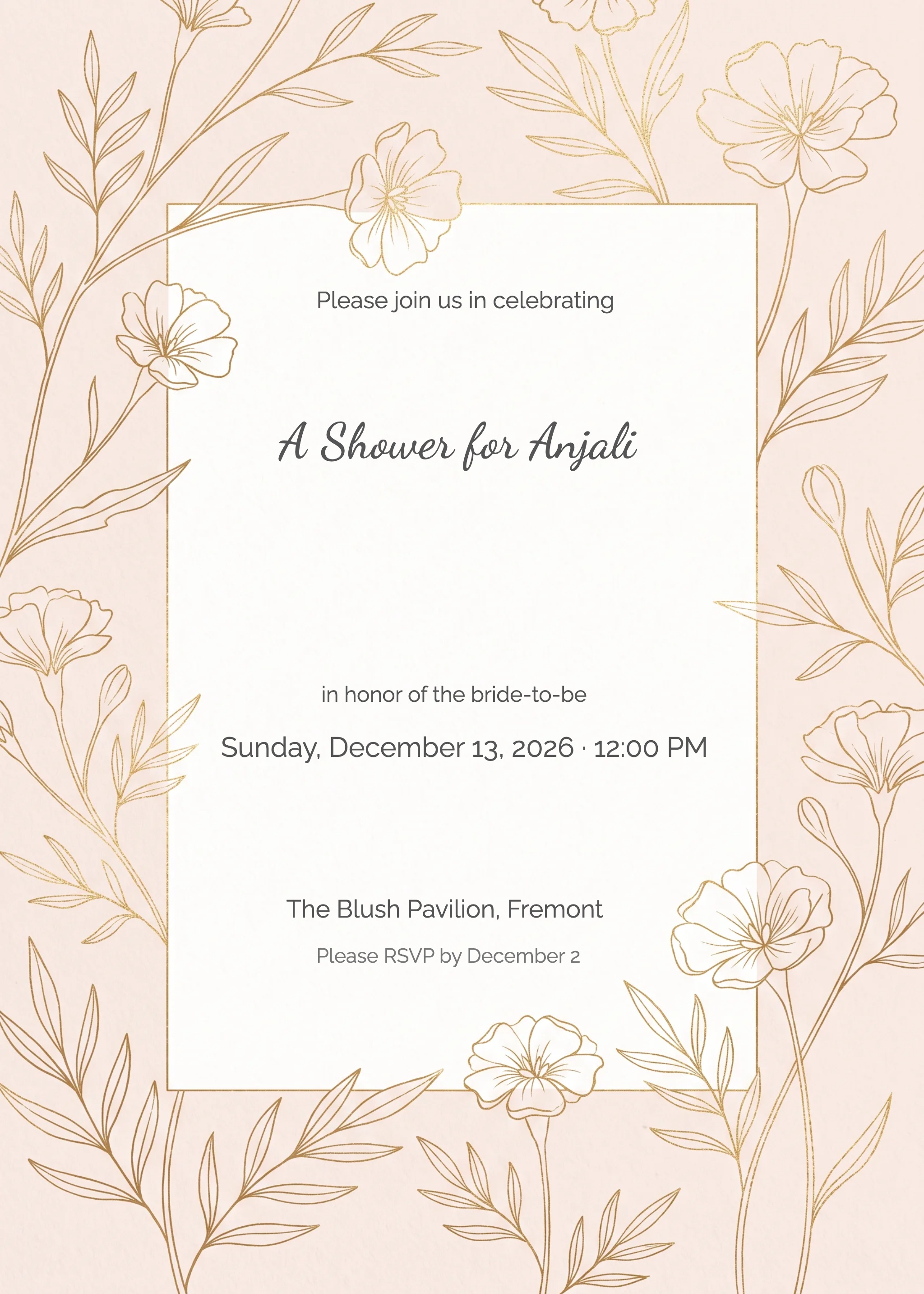
InviteFlare has hundreds of free, customisable templates. Send digitally in seconds — no printing, no hassle.


